macOS desktop app
Applies to eSemnBun 0.2.0. For terminal workflows, see the macOS CLI guide.
Choose a distribution
Both editions provide signing, verification, certificate details, saved PINs, and Romanian, English, and Russian interfaces. Their system integrations differ:
| Capability | GitHub DMG | Mac App Store |
|---|---|---|
| Installation | Signed, notarized app; copy to Applications | Install through the App Store |
| Files | Select or drop documents; save results | Select documents and export results through system controls |
| Websites | Local browser bridge and in-app browser | In-app browser workflow |
| Open on reader/card insertion after quitting | Optional background helper | Not included |
| Close a conflicting vendor server | Offered for recognized MoldSign conflicts | Not included |
| Updates | Check for updates and periodic checks | Managed by the App Store |
Get the desktop DMG from GitHub Releases. Store availability depends on review and region.
Install and connect
- Open the DMG, move eSemnBun to Applications, and launch that copy. Eject the disk image afterwards. For the store edition, launch the installed app from Applications.
- The main window appears on first launch. Connect a supported USB reader directly or through an appropriate adapter.
- Insert the card and wait for its signing certificate to load. This read does not require a signing PIN.
- Check the holder and expiry. With multiple cards, select the intended card in the carousel; the centred card is used for signing.
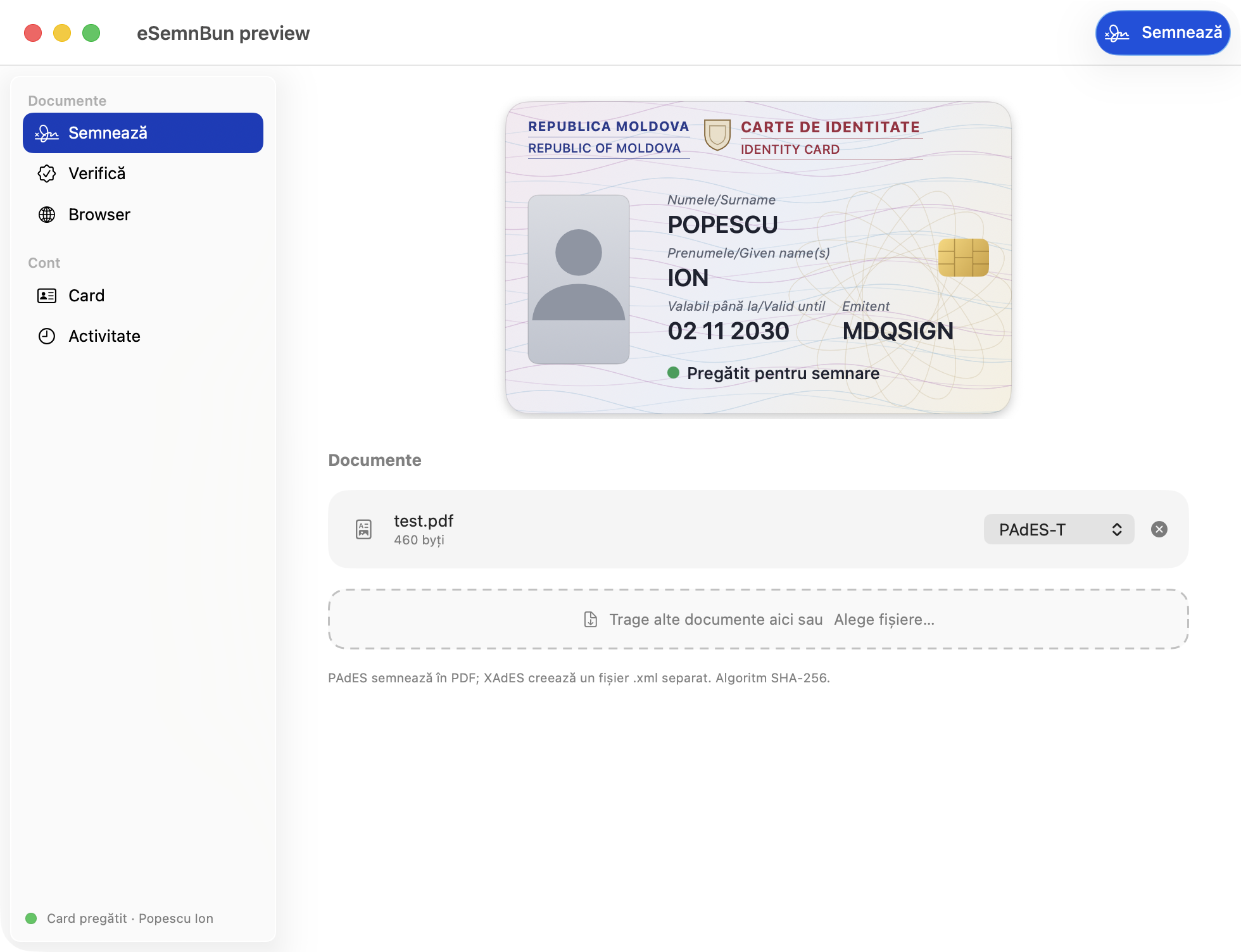
The card illustration uses certificate information and a neutral avatar, not a photograph read from your ID. An empty reader shows an insertion prompt.
Sign and save documents
- Open Sign. Drop files into the dashed area or choose Choose files…. Add all documents you intend to sign.
- Review each filename and format. PAdES-T embeds the signature in a PDF. XAdES produces XML; keep the original with a detached XML signature.
- Choose Sign, review the authorization sheet, and enter the selected card's PIN or use the offered authentication for a saved PIN.
- Keep the reader connected until completion. Use the result's open, reveal, export, or share action to locate the output. The store edition may require an explicit export to a destination you select.
The batch approval covers the displayed file list. A new batch requires another approval. If a document fails, inspect the error and retry after correcting the cause. Repeatedly signing an unchanged malformed PDF will not repair it. See formats, batches, and errors.
Verify a signature
Open Verify, then drop in a signed PDF or select it with the picker. For detached XAdES, also provide the original document when asked. Review every signature's integrity, signer, certificate chain, and timestamp information. A missing original prevents its digest from being checked. See verification results.
Use government websites
In the GitHub edition, enable Browser connection in Settings and open a supported service in a browser on the same Mac. Keep eSemnBun running and check the requesting site before authorizing.
In the Mac App Store edition, use the Browser tab: enter the service address or choose a bookmark, navigate to identity-card login/signing, and complete the request in eSemnBun.
If the desktop edition reports that MoldSign owns the ports, finish any vendor signing operation, then use Quit MoldSign and reconnect. See browser setup for connection recovery and browser permissions.
Settings and the menu bar
- Language and appearance: choose Romanian, English, or Russian and light, dark, or system appearance. The interface updates immediately.
- Saved PINs: manage entries in the dedicated PIN tab. Deleting an entry removes the app's saved copy; it does not change the card PIN.
- Demo mode: enable it in Settings and accept the explanation. It uses sample documents and fictional cards; its outputs are demonstrations, not real signatures.
- About: find the icon, author, version, and website. Include the version in support requests.
The menu-bar item opens the main window, Settings, and About, and offers Quit. Closing the main window can leave the app running in the menu bar.
Open automatically when a reader or card is inserted
The GitHub edition includes an optional insertion helper. Enable it in Settings. If approval is required, open System Settings → General → Login Items and approve the eSemnBun background item. Enable it first, then reconnect the reader or insert a card. The helper remains available after the main app quits. Disable the preference to unregister it.
Update the app
The GitHub edition's Check for updates command checks the published version and opens the download page when an update is available. Automatic checks are spaced seven days apart. Install the replacement app from the new DMG. App Store installations update through the store.
Troubleshooting
| Symptom | Next step |
|---|---|
| No reader | Reconnect the adapter and try a direct USB connection. |
| Reader but no card | Reinsert the card and wait for the read to finish. |
| Wrong holder selected | Select the intended card before entering a PIN. |
| Browser port occupied | Close the recognized competing server and reconnect. |
| Store app cannot save beside the source | Use Export/Save to select a permitted destination. |
| Incorrect PIN | Stop and verify the card and PIN before another attempt. |
For unresolved problems, include your distribution (DMG or App Store), app/macOS versions, reader model, and reproduction steps. See troubleshooting.