Android phone and tablet
Applies to eSemnBun 0.2.0, Android 8 or later. The universal APK includes ARM32, ARM64, x86, and x86-64 dependency slices. Your device also needs USB host/OTG support to communicate with the reader.
Install and connect
Install from Google Play when available, or download the release APK from GitHub Releases. Android may request permission to install an APK from the app that opened it. An AAB is a store-upload bundle, not a phone installer.
- Open eSemnBun and connect a compatible USB reader through an OTG adapter.
- Grant Android's USB-access prompt to eSemnBun for the connected reader.
- Insert your ID card and wait for the signing certificate to load.
- Check the holder and expiry. With multiple cards, swipe the carousel to select the intended card.
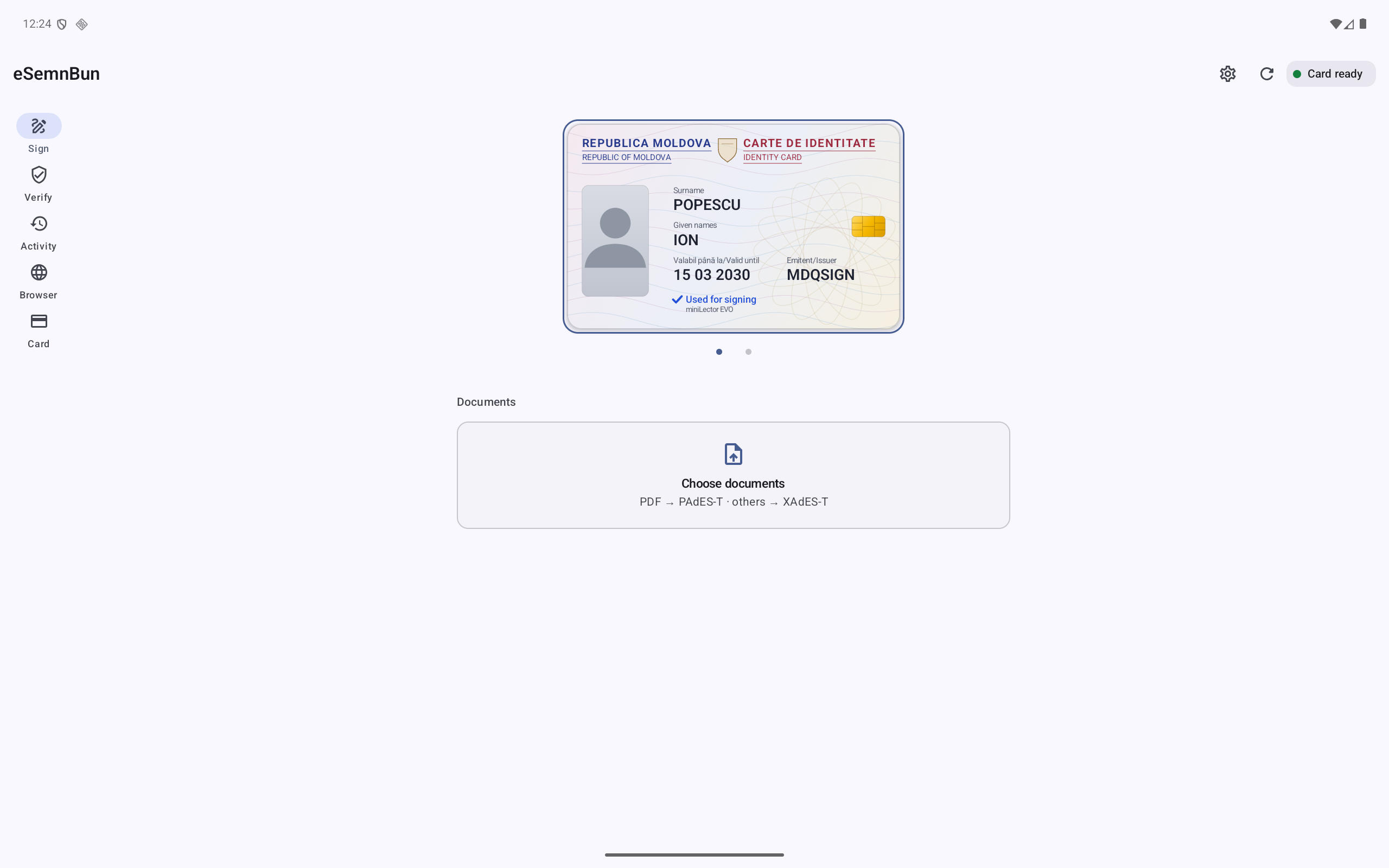
NFC is not supported. Use a compatible wired reader even if other apps on your phone support NFC.
Sign and find the output
- In Sign, choose documents with the system picker or share files from another app to eSemnBun.
- Review every filename and format. PAdES-T embeds a signature in a PDF. Detached XAdES produces XML that must be kept with the original.
- Choose Sign, check the batch list in the authorization sheet, and authorize with the correct card PIN or the offered saved-PIN flow.
- Keep the reader connected until completion. The batch approval covers only the listed files and selected card. A new batch asks again.
- Use the result or Activity actions to Open, Share, or Save as…. On Android 10 and later, normal signed output is saved under Downloads/eSemnBun. Save as lets you select another destination.
The app creates output separately from the input. If a batch stops on an error, inspect which files completed before starting another attempt. For an incorrect PIN, stop and verify it before retrying. See signing formats and errors.
Phone and tablet layouts
Phones use compact navigation and a PIN sheet that accommodates the system keyboard. Expanded tablet windows use a navigation rail and desktop-style signing order: card, document list, file controls, and signing action. Window width determines the layout; split-screen mode can make a tablet use the compact layout.
Swipe the card carousel to change the selected card. Open Card to inspect certificate details or re-read it. The card artwork contains a neutral avatar rather than your identity photograph.
Browser services
Choose the workflow that fits your device:
- In-app browser: enter a URL or select a bookmark, and use back, forward, and reload. Request desktop-site presentation when a service hides identity-card login on mobile.
- External browser connection: enable the connection and visit a supported site in a browser on the same Android device. Keep the connection active and respond to eSemnBun's consent notification. Allow the relevant notification/local-network permissions when requested for that workflow.
Check the requesting service and operation before approving. Custom bookmarks accept a URL, title, and icon. Browser-data controls clear cache, cookies, and history; clearing cookies can sign you out. See browser services.
Verification, settings, and updates
Choose a signed PDF or XML in Verify. For detached XML, provide the original when requested. Review integrity, signer, and certificate/timestamp results individually; see verification results.
Settings includes Romanian, English, and Russian, appearance, saved PINs, demo mode, and About. Saved PINs are separate from browser cookies. Deleting an entry does not change the card PIN. Demo mode requires confirmation and remains visibly labelled; its sample outputs are not real signatures.
Update Play installations through Google Play. For a GitHub APK installation, install a compatible newer release from the same distribution/signing source. Android can reject an update signed by a different key.
Troubleshooting
| Symptom | What to check |
|---|---|
| USB access denied | Reconnect the reader and grant access to eSemnBun. |
| Reader never appears | Check USB host/OTG support, adapter, and reader compatibility. |
| Browser request has no visible result | Confirm the connection is enabled and check consent notifications. |
| Identity login is missing | Use desktop-site presentation in the in-app browser. |
| Keyboard reduces available space | Scroll the PIN sheet; enlarge or rotate a tablet window if useful. |
| Document fails to sign | Read its error before retrying and retain the original. |
Provide your Android/app versions, reader/adapter model, and reproduction steps in a support request.