Linux desktop app
Applies to eSemnBun 0.2.0. The desktop app uses GTK 4 and libadwaita; Ubuntu 24.04 and Fedora are supported targets. See the separate Linux CLI guide for terminal installation and commands.
Choose and install a package
Download a package for your distribution and CPU architecture from GitHub Releases. The desktop and CLI are separate packages in the DEB/RPM distributions.
| Package | Use |
|---|---|
| Desktop DEB | Ubuntu/Debian desktop integration and application launcher |
| Desktop RPM | Fedora-compatible desktop build; check the release's library requirements |
| Flatpak | GNOME desktop app with sandboxed file access |
| CLI package or archive | Terminal commands and optional browser service; no desktop window |
Install a downloaded DEB/RPM through your distribution's package manager so dependencies are resolved. For a downloaded Flatpak bundle, use flatpak install --user ./<downloaded-file>.flatpak, then open eSemnBun from the applications menu.
Prepare reader access
The host needs PC/SC and a CCID driver. For Ubuntu:
sudo apt install pcscd libccid
sudo systemctl enable --now pcscd.socket
For Fedora:
sudo dnf install pcsc-lite pcsc-lite-ccid
sudo systemctl enable --now pcscd.socket
Run the app in your local desktop session. Access from an SSH session can be restricted by the system's PC/SC policy even when access works from the desktop.
Connect and select a card
Open eSemnBun, attach the USB reader, and insert the card. Wait for the certificate read and check the holder/expiry. Select the intended card in the carousel when several readers contain cards. The card artwork uses certificate details and a neutral avatar.
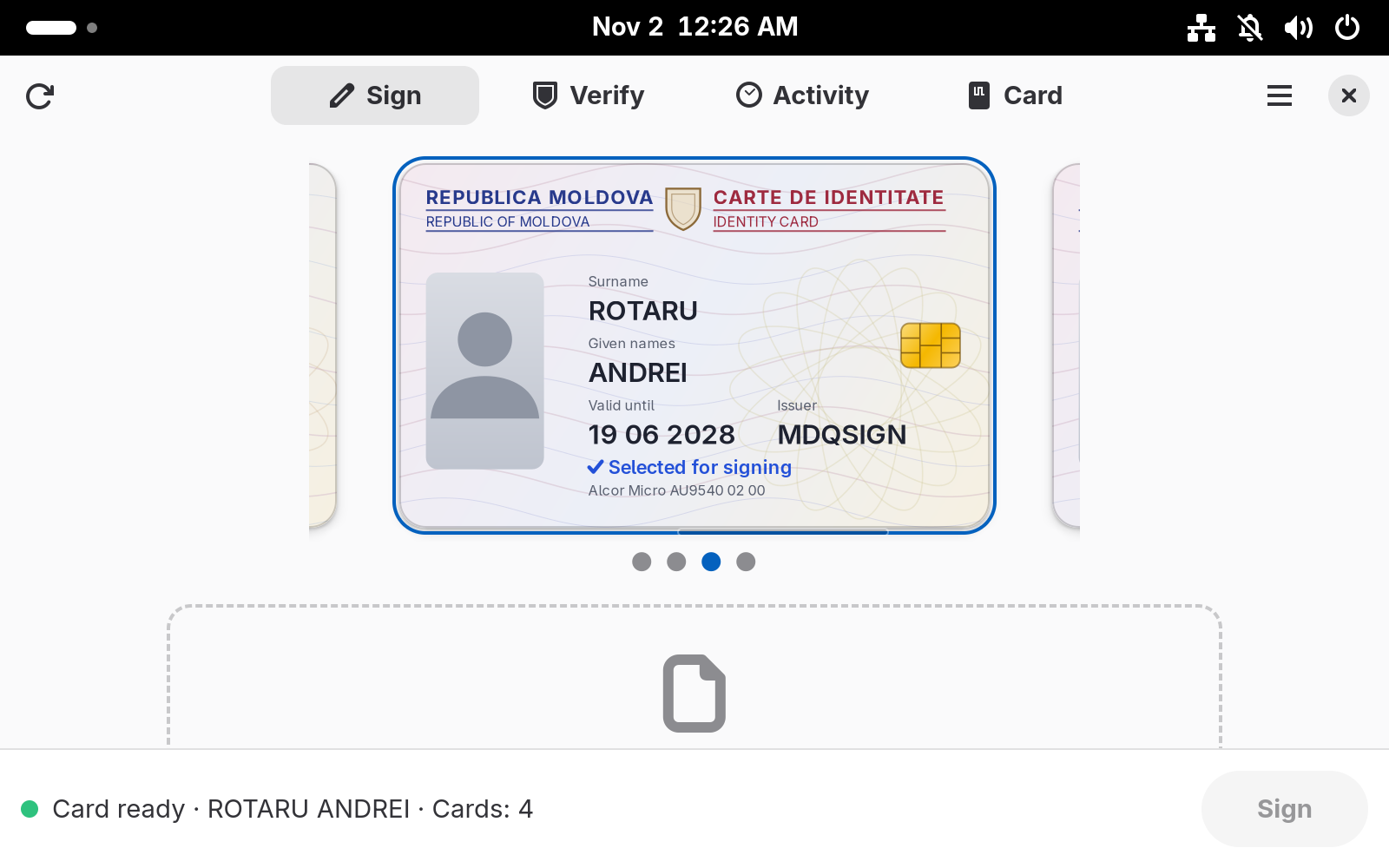
An empty reader prompts you to insert a card. A PC/SC service error is different from having no reader: check the socket/service before reconnecting hardware.
Sign and verify
- Open Sign and drop documents into the dashed area or use Choose files….
- Review each document's format. PAdES-T embeds the signature in a PDF; detached XAdES creates a separate XML signature.
- Check the selected identity, choose Sign, review the request, and authorize with the correct card PIN.
- Wait for completion and use the result's open/reveal action to locate the signed file. Preserve the original with any detached XML signature.
Use Verify to choose or drop in a signed PDF or XML. Detached XML needs its original document to check the document digest. Read every signature's result rather than relying on the filename. See signing and verification.
Activity lists recent operations. Clearing the activity list does not delete signed files. Use Preferences for language, appearance, and saved-PIN controls. Saving PINs requires the desktop Secret Service/keyring; an unavailable or locked keyring can prevent saving even when signing with a manually entered PIN works.
Browser connection and certificate setup
Enable Browser connection in the desktop app, then open the supported service in a browser on the same Linux machine. Keep the app running to receive consent/PIN dialogs.
Desktop packages bundle the localhost HTTPS identity, so a normal installation does not require importing your own certificate. If the packaged identity needs replacing, use Preferences → Browser connection → MoldSign HTTPS identity → Import… and select the replacement localhost.p12. This is the bridge's localhost identity, not your personal signing certificate.
The imported copy takes precedence over the package. The native app stores it under ~/.local/share/moldsign/; Flatpak uses its app data directory. The override MSIGN_TLS_P12 is available for explicit configuration. Do not import the localhost identity as a personal certificate or disable browser TLS checks.
Only one process can own bridge ports 18480/18443. If the CLI service or MoldSign is already using them, stop that instance before enabling the GUI connection. Prefer the GUI when you need consent and PIN dialogs. See browser services and the CLI service instructions.
Updates and troubleshooting
Install new DEB/RPM/Flatpak releases using the same package channel. Standalone update checks open the download page; they do not replace packages for you.
| Symptom | Next step |
|---|---|
| PC/SC unavailable | Check systemctl status pcscd.socket pcscd.service. |
| No reader | Check USB connection and CCID driver; reconnect the reader. |
| Works locally but not over SSH | Use the local desktop session or have the administrator review PC/SC policy. |
| Cannot remember PIN | Unlock the desktop keyring and confirm Secret Service is running. |
| Browser connection fails | Check competing bridge processes and HTTPS identity setup. |
| Flatpak cannot access a file | Select it through the system picker and choose an export destination explicitly. |
For support, include the distribution/version, package type, CPU architecture, app version, and reader model. Do not include a PIN or sensitive document.