Windows desktop app
Applies to eSemnBun 0.2.0, Windows 10 1809 or later, and Windows 11. See the Windows CLI guide for PowerShell and automation workflows.
Install the appropriate edition
Use the MSI from GitHub Releases for standalone installation, or Microsoft Store when the app is available there. Choose the architecture listed for your machine in the release assets. An unsigned development MSIX can require a signing certificate and is not a substitute for the public MSI.
- Run the MSI and complete the installation, or install from the store.
- Open eSemnBun from Start. The main window appears on the first launch.
- Connect the reader. The miniLector uses the Windows CCID driver and Smart Card service.
- Insert the card and wait for its certificate. Check the holder and expiry before signing.
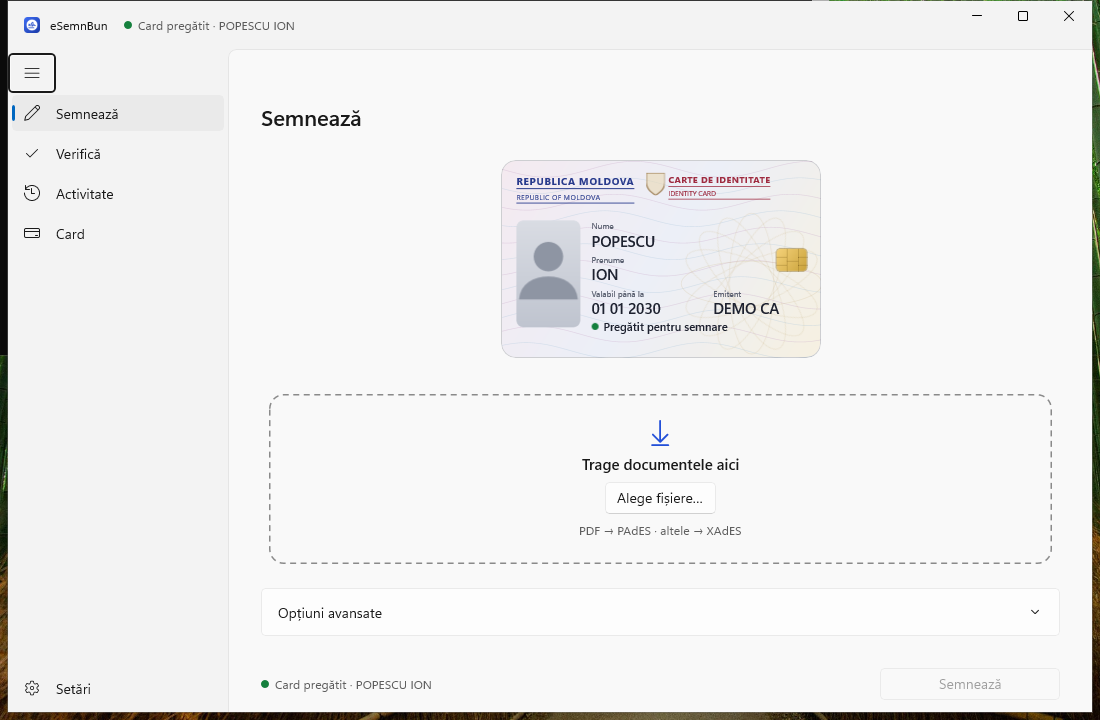
Multiple cards appear in the horizontal carousel. Select the centred card you intend to sign with. The artwork uses certificate information and a neutral avatar, rather than your ID photograph.
Sign documents from the app or Explorer
In Sign, drag documents to the dashed drop zone or choose Choose files…. Where the installed edition provides an Explorer context-menu integration, you can send selected files into eSemnBun from Explorer as well.
- Add the files and check the format beside each one.
- For PDFs, use PAdES-T to embed the signature in the PDF. XAdES produces XML; detached XML must be kept with the original document.
- Confirm the selected identity, choose Sign, and review the authorization request before entering the card PIN or authenticating a saved entry.
- Keep the reader connected until completion. Use the result actions to open or locate output files.
Batch authorization applies to the approved document list and selected card. If an item fails, inspect its error before retrying. Completed outputs should not be confused with unsigned inputs. See signing formats and errors.
Verify and inspect activity
Open Verify and choose or drop in a signed PDF/XML file. A detached XML signature also needs the original document. Inspect the signer, integrity, certificate chain, and available timestamp checks. A valid filename or green card status does not establish that a document signature is valid.
Activity records recent operations and provides actions for available files. Clearing history does not remove the signed documents themselves.
Settings, PINs, and tray controls
Settings contains language (Romanian, English, Russian), appearance, saved-PIN management, startup and reader-opening preferences, browser connection, demo mode, and About. Some controls depend on the installed distribution.
A saved PIN uses Windows security/authentication facilities. Deleting it removes the app's saved entry and does not change the physical card PIN. Check which card an entry belongs to before removing it.
The tray icon gives access to the app and its actions. Closing the main window can leave eSemnBun running; use Quit when you intend to stop it. In Settings, configure whether to open at sign-in or when a reader/card is inserted. Enable the relevant option first, then reconnect the reader to check the behavior.
Demo mode requires acceptance, shows fictional cards and sample documents, and remains labelled during normal use. Turn it off to return to your reader. About shows the icon, author, version, and website.
Use the browser bridge
Enable Browser connection in Settings. Open a supported service in a browser on the same Windows computer. When a request arrives, check its site, files, and selected card before authorization.
If another MoldSign server owns the ports, finish active vendor operations and use the offered conflict-resolution action where available. Only one bridge can use ports 18480/18443 at a time. If the browser asks for local-network access, grant it for the intended service so it can contact the local bridge. See browser services.
Update or resolve a problem
Microsoft Store installations update through the store. Standalone builds offer update checks that lead to the download page; install the replacement MSI from the release.
| Symptom | Next step |
|---|---|
| Reader missing | Check Device Manager for the smart-card reader; reconnect it and verify the Smart Card service. |
| Certificate does not load | Reinsert the card and allow the read to finish. |
| Wrong identity | Select the intended card before entering its PIN. |
| Browser port occupied | Stop the competing recognized server, then reconnect. |
| Saved PIN unavailable | Use manual PIN entry and review Windows authentication/settings. |
| Document fails | Inspect its error, preserve the source, and correct the cause before retrying. |
Stop after an incorrect-PIN result and verify the PIN rather than guessing. Report app/Windows versions, MSI or Store edition, architecture, reader model, and reproduction steps. See troubleshooting.