iPhone and iPad
Applies to eSemnBun 0.2.0 on iOS/iPadOS 17 or later. Install through the available Apple distribution channel. Navigation and tab-bar appearance follow your installed system version.
Connect your card
You need an active supported Moldovan electronic ID, its signing PIN, a compatible USB reader, and the appropriate USB-C or Lightning adapter. NFC signing is not supported.
- Open eSemnBun and connect the adapter and reader.
- Insert the card and wait for its signing certificate to load.
- Check the holder and expiry. A reader without a card shows an insertion prompt.
- If several cards are available, swipe the carousel to centre the intended card. The dots identify the selection.
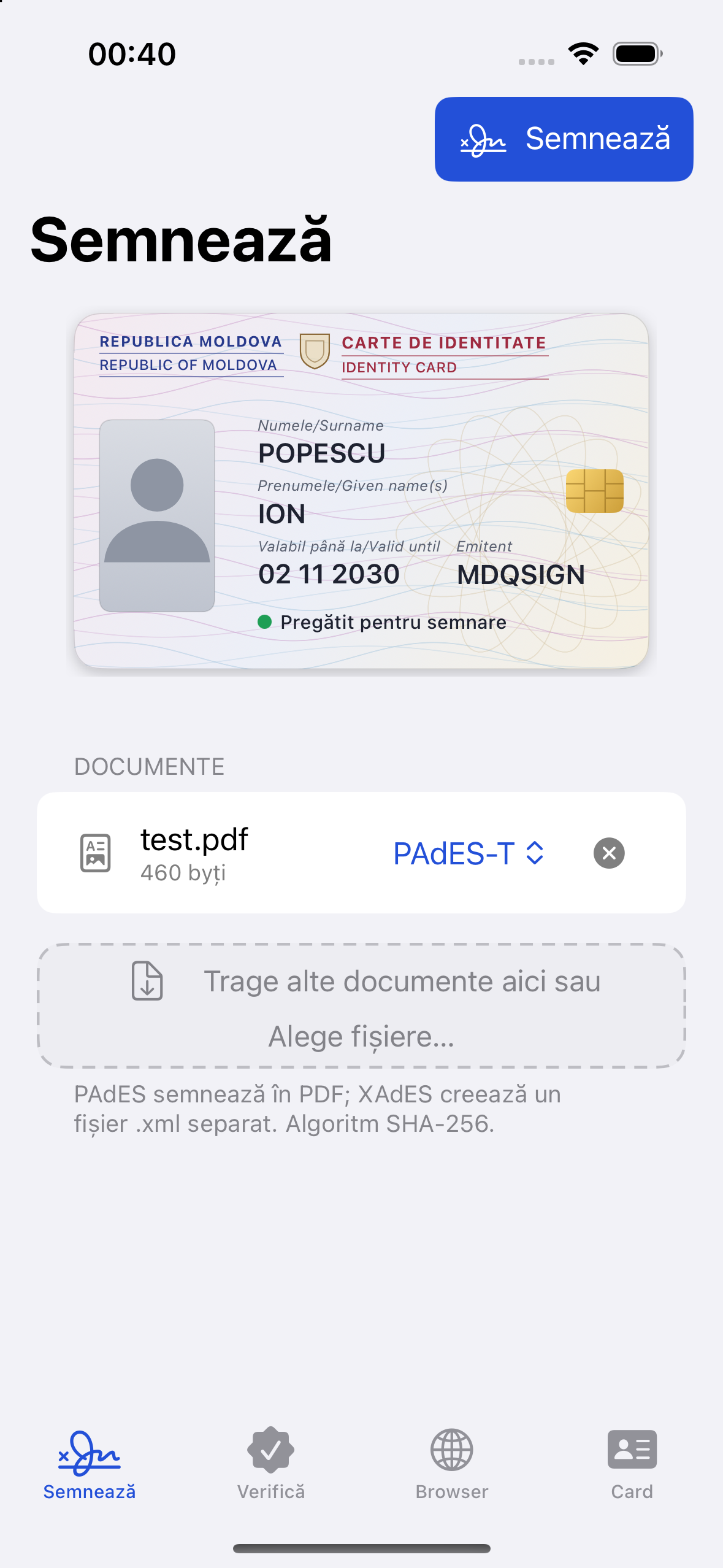
The card illustration uses certificate information and a neutral avatar. It does not display your ID photograph.
Import, sign, and share
- Open Sign and choose files through the system file browser. Alternatively, open another app's share sheet and choose the eSemnBun share extension.
- Check the filenames and formats. PDFs default to PAdES-T. XAdES produces XML; detached XML signatures must be kept with their original documents.
- Choose Sign and review the authorization sheet. For a batch, check the whole document list before approving.
- Enter the selected card's PIN or use the offered saved-PIN authentication. Keep the reader connected until the operation completes.
- Use the result's share/export control to save to Files or send to another app. Share the signed output rather than the unsigned input. Include the original when sharing detached XAdES.
The approved session PIN can be reused for the listed documents in that batch. Another batch asks again. A malformed PDF or incorrect PIN needs attention before retrying. See signing and verification.
iPad, iPhone Duo, and multitasking
The layout responds to available window space. Wider windows place document and file operations alongside the card area; narrow windows use compact navigation and signing controls. Card selection remains swipeable in both layouts. Enlarge a split-screen window if you need more space for document operations.
Login and sign on websites
Open Browser, enter the service address or select a bookmark, then navigate to its identity-card login/signing option. Use the browser's back, forward, and reload controls to navigate without leaving the app.
Some services hide identity-card login in their mobile presentation. Use the browser's desktop-site presentation for that login flow. The in-app browser provides the full navigation path on devices where an external browser cannot complete the connection. An external-browser connection remains available for supported device and side-by-side workflows.
Bookmarks can have a custom URL, title, and icon. To reset a session, use the browser-data controls to remove cache, cookies, or history. Removing cookies may sign you out; it does not delete documents or saved card PINs. See browser services.
Verify and manage preferences
In Verify, choose a signed PDF or XML and provide the original document for detached XAdES when requested. Inspect the individual signature results; document integrity, certificate trust, and timestamps describe different checks.
Settings contains language (Romanian, English, Russian), appearance (light, dark, system), saved PINs, demo mode, and About. Deleting a saved PIN does not change the physical card's PIN. Normal demo mode remains labelled and uses sample data. About shows the app icon, author, version, and website.
Troubleshooting
| Symptom | Next step |
|---|---|
| Reader does not appear | Reconnect the adapter and check the connector and reader compatibility. |
| Card remains unreadable | Reinsert it and wait before starting another request. |
| Identity login is hidden | Request desktop presentation in the in-app browser. |
| Cloud document cannot be opened | Download it in Files, then select it again. |
| Signing fails after PIN entry | Read the error. Stop after an incorrect-PIN result and confirm the PIN. |
| Result missing in another app | Share/Export the completed result to that destination again. |
Updates come through Apple's distribution channel. For support, provide the app and system versions, reader/adapter model, and reproduction steps; see troubleshooting.